Device Detail
Everything Lavawall knows about one computer, with the tools to fix it, on a single page.
What the page is for
Device Detail is a page in the Lavawall® console, in the Devices area. Lavawall is the RMM, security, and compliance platform from ThreeShield, built and hosted in Canada. About this feature.
Device Detail is the full record for a single computer or server. It opens when you click a device name anywhere in the console, such as the Computers list, a dashboard or a report.
The top of the page shows the device's name and nickname, its owner and your notes. A Device card appears straight away with the basics the Lavawall agent last reported: Computer name, Current user, Operating system, Kernel, Architecture, IP address and Last seen (in your local time). The rest of the detail loads underneath in tabs.
Buttons for remote support appear as soon as the page opens, so you can connect to the computer without waiting for the full detail to load.
What you see
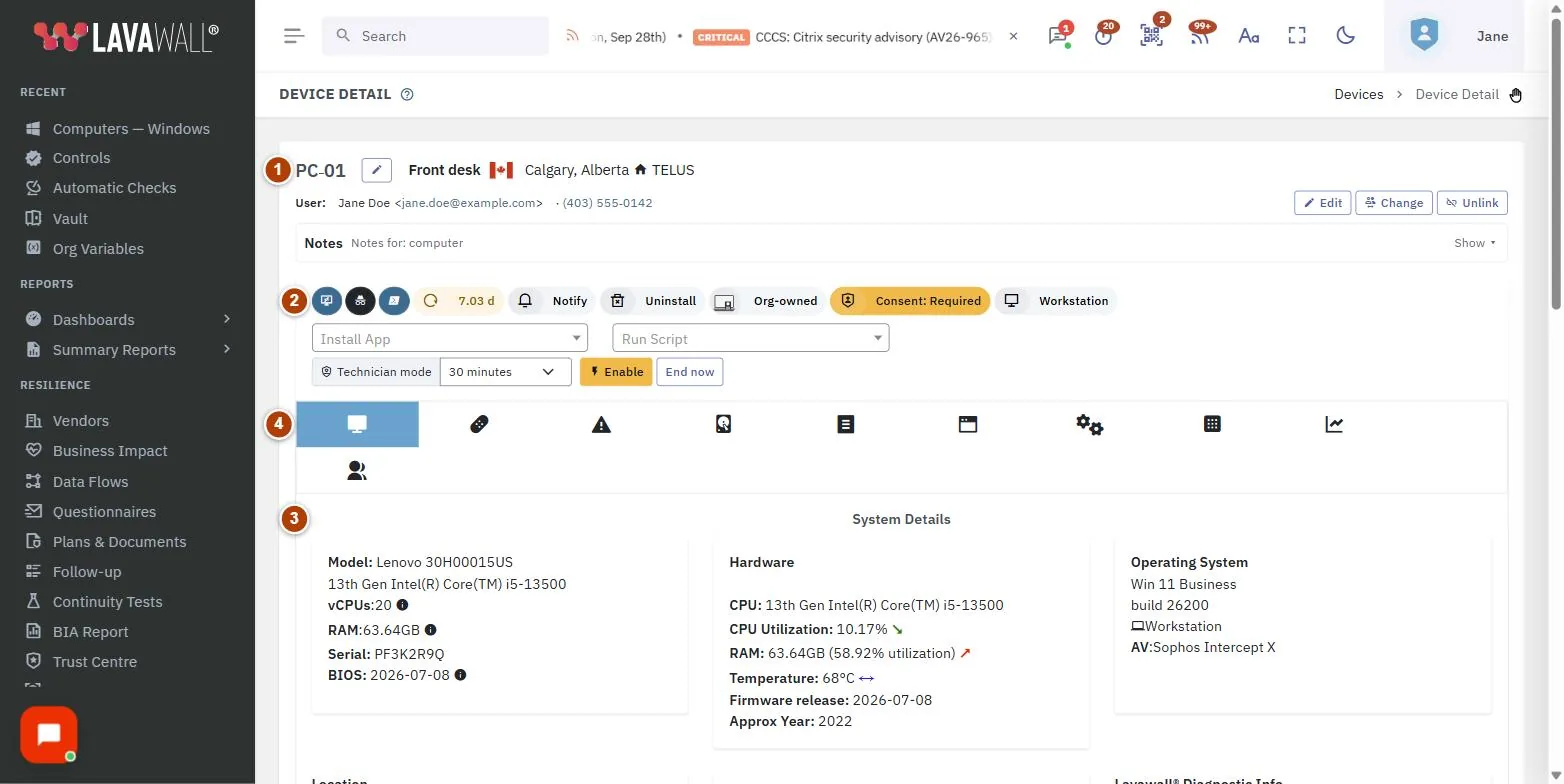
- Device header: the device name and nickname, the owner, and a notes panel.
- Remote support buttons: connect to the device's desktop or shell (when the device is online and your plan includes remote support), plus device actions such as restart.
- Device card: Computer name, Current user, Operating system, Kernel, Architecture, IP address and Last seen.
- Detail tabs: the full record, including hardware details, missing patches, configuration issues and performance graphs. A Threats tab appears when the computer has malware detections, antivirus problems or Huntress and Sophos incidents; see Malware & AV. Browser extensions and Listening ports tabs appear when the Lavawall agent has sent those lists for the computer.
How to use Device Detail
How to open a device
- Go to Devices › Computers.
- Open the ⋮ menu on a row and choose Full Detail Page. It opens in a new browser tab.
- You can also click a device name in a dashboard or report.
How to connect to the device
- Use the remote support buttons at the top of the page.
- A remote session opens in a new tab. See Remote Support for the controls.
How to review patches, configuration and performance
- Click the tab you need in the detail area.
- Patches lists the updates the device is missing. Configuration lists failed security checks. Performance shows CPU, memory, storage and network use.
How to give the device a nickname, owner or note
- Use the header at the top of the page to set a nickname, change or create the owner, or add notes.
- Your changes are saved to the device and show in the Computers list.
How to restart the device
- Choose the restart action at the top of the page.
- Type the computer's name exactly as shown to confirm. This protects against restarting the wrong machine.
How to move the computer to another organization
A Super Admin can move a computer between their own organization and the client organizations it manages, for example to a sister company with the same managing organization, without reinstalling Lavawall®. You need the High-impact actions permission.
- Choose Move to organization… at the top of the page.
- Pick the organization in Move to. Type to search the list. An organization that has reached its computer limit is marked and can’t be chosen.
- Enter a reason. It is recorded in the activity log of both organizations.
- Choose Continue, complete the security check, then choose Move computer.
The computer keeps its history and moves the next time it connects, within a minute if it is online. Device groups, scheduled scripts, printers, Remote Access for users, secret variables and WireGuard assignments that belong to the organization it leaves are removed from it, and the result lists what was removed. The Super Admins of both organizations are told.
How to review browser extensions and listening ports
These tabs appear only when the Lavawall agent has sent the list for this computer. The agent checks extensions every 12 hours and listening ports every hour, and sends a list when it changes. The time the list was last received is shown at the top, in your own time zone.
- Open Browser extensions to see every extension in Chrome, Edge, Brave, Vivaldi, Opera and Firefox, for each user and browser profile. Risk flags, in words, extensions that can read every website, ask for sensitive permissions (such as debugging pages, talking to programs on the computer or reading cookies), did not come from a store or a policy, or are disabled. Store page opens the extension's listing when it came from a store.
- Open Listening ports to see each TCP port a program is waiting for connections on, with the program and its path. Listening on tells you whether the port can be reached from the network (All interfaces or One network address) or only from the computer itself. Well-known risky ports, such as Remote Desktop, file sharing, Telnet, VNC, remote management and databases, are named and flagged.
- Select a column heading to sort, type in Search to narrow the list, or use the drop-downs to show, for example, only flagged extensions or only high-risk ports reachable from the network.
How to see the computer's language and time zone
The Language and time zone card on the Hardware tab shows what the Lavawall agent reports from Windows, macOS or Linux. The agent checks every 12 hours and sends the details only when they change. Until the computer has reported them, the card says Not collected yet.
- Open the Hardware tab and find the Language and time zone card, next to Operating System.
- Language and region and Display language are shown by name in your own language, with the language code beside them. Installed languages opens to list every language installed on the computer.
- Time zone, UTC offset and Local time now tell you what time it is where the computer is set, which helps when you plan a restart or call the person using it. Time zone set automatically shows whether the computer chooses its time zone by itself.
- Users’ languages lists the language of each person who signs in to the computer, with when it was last seen.
Language and time zone can hint at where a person is. They are shown only to people who can already see the computer, and the redacted view hides the account names.
Tips
- Last seen is shown in your own time zone.
- If the nickname is different from the real computer name, both are shown so you can still find the machine.
- Remote buttons are available only while the device is connected. An offline device shows them greyed out.
- Bookmark a device's page to get back to it quickly.
Troubleshooting
- "Move to organization…" is not shown.
- Only a Super Admin with the High-impact actions permission sees it, for computers of their own organization or of a client organization it manages directly.
- "That organization has reached its computer limit."
- Raise the organization’s limit on the Billing page, or remove a computer from it, then try again.
- "A move for this computer is already waiting for the computer to connect."
- The computer has not connected since the move was sent. It moves as soon as it connects; a move that is never completed closes by itself after 30 days.
- "Device not found or you do not have access to this device."
- The link is wrong, the device was removed, or it belongs to a company your account cannot see.
- "No device parameter provided."
- The page was opened without choosing a device. Open it from the Computers list instead.
- The page shows "Loading device details…" for a long time.
- The basic Device card is already correct. Wait a moment for the rest, or reload the page.
Task guides that use this page
Related articles
Still need help?
Search the support centre, or contact our support team and tell us which page you were on:
- Chat now: use the chat button in the bottom-right corner of this page to reach our team right away. Where cookie consent is needed, the chat starts after you accept (cookie settings).
- Email: send our support team a message through the contact page. It goes straight to a person.
- Phone:
 AB: 1-403-538-5053
 US: 1-406-988-7333
 UK: +44 20 3695 9786
Names, companies, devices and figures in the pictures are examples. Other product and company names are trademarks of their respective owners.